Quick answer
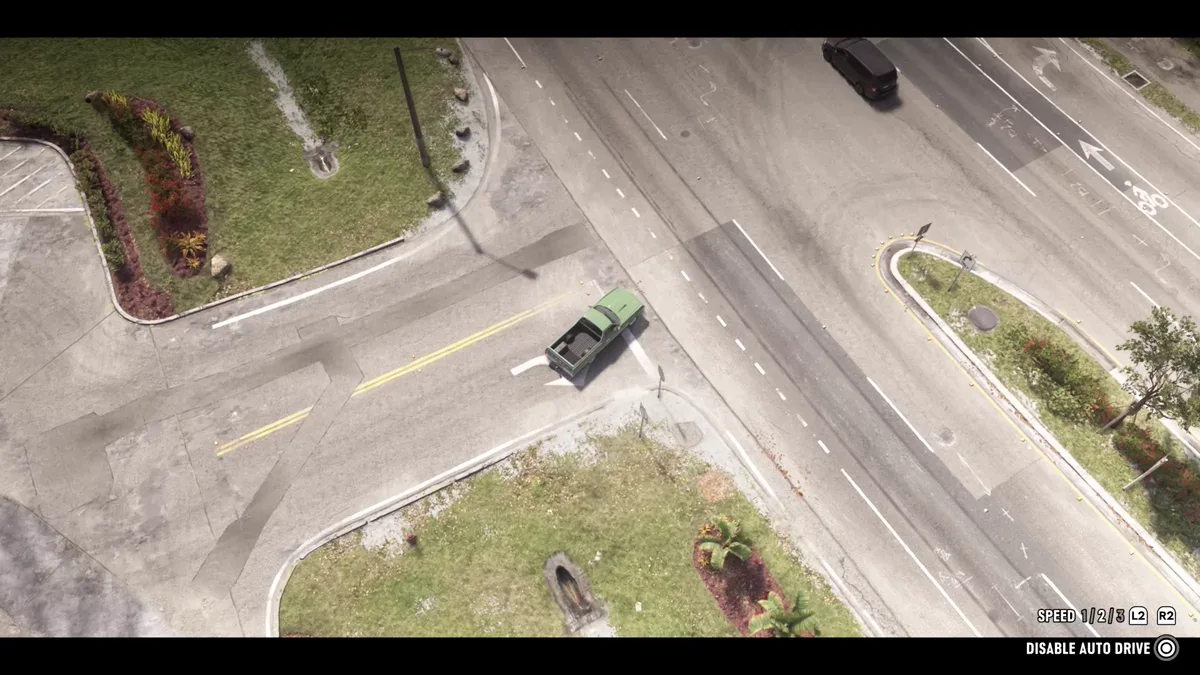
Set a road destination and switch to the cinematic camera. Start moving and hold Circle on PS5 or B on Xbox when Enable Auto Drive appears.
How to enable Auto Drive on PS5 and Xbox
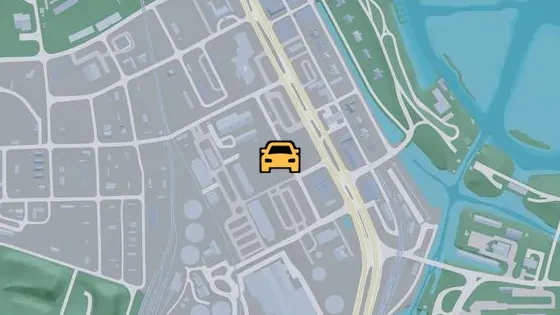
- Set a destination that you can reach by car and get on a road, start to let the game plot the route.
- Press and hold the crosshair to open camera options, press Options on PS5 or Menu on Xbox to select Cinematic View.
- Scroll slowly until the option appears Enable Auto Drive. Keep circle on PS5 or B on Xbox to have the car follow the route.
What to do when the notification doesn’t appear
Check that the route is still active and drive a few meters on asphalt. Off-road, Restricted Mode may return the controller to you. Look for the Auto Drive option in Gameplay settings if you want to use the extended range indicated by the menu.
How to change the view or retrieve the wheel
Use R3 to change planes if the control appears on screen. To steer the car again, press the Disable Auto Drive button, and you can resume the journey later without changing destination.
See also GTA 6 settings · map of cities and neighborhoods.